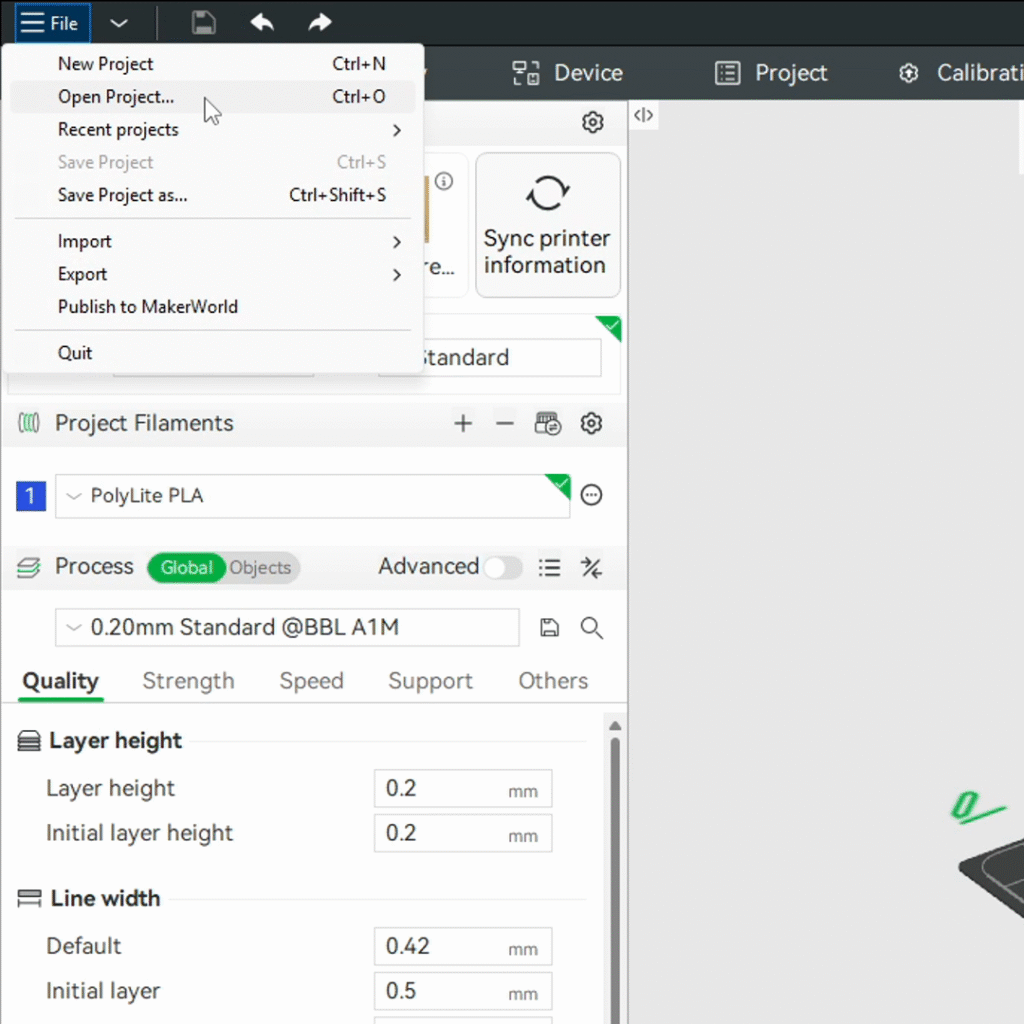
1. Open a new instance of Bambu Studio.
2. Navigate to the upper left hand corner and select “File” to access the dropdown menu, and select “Open Project…”.
3. Locate the “queue.3mf” file as exported from the Queue Creator and open it.
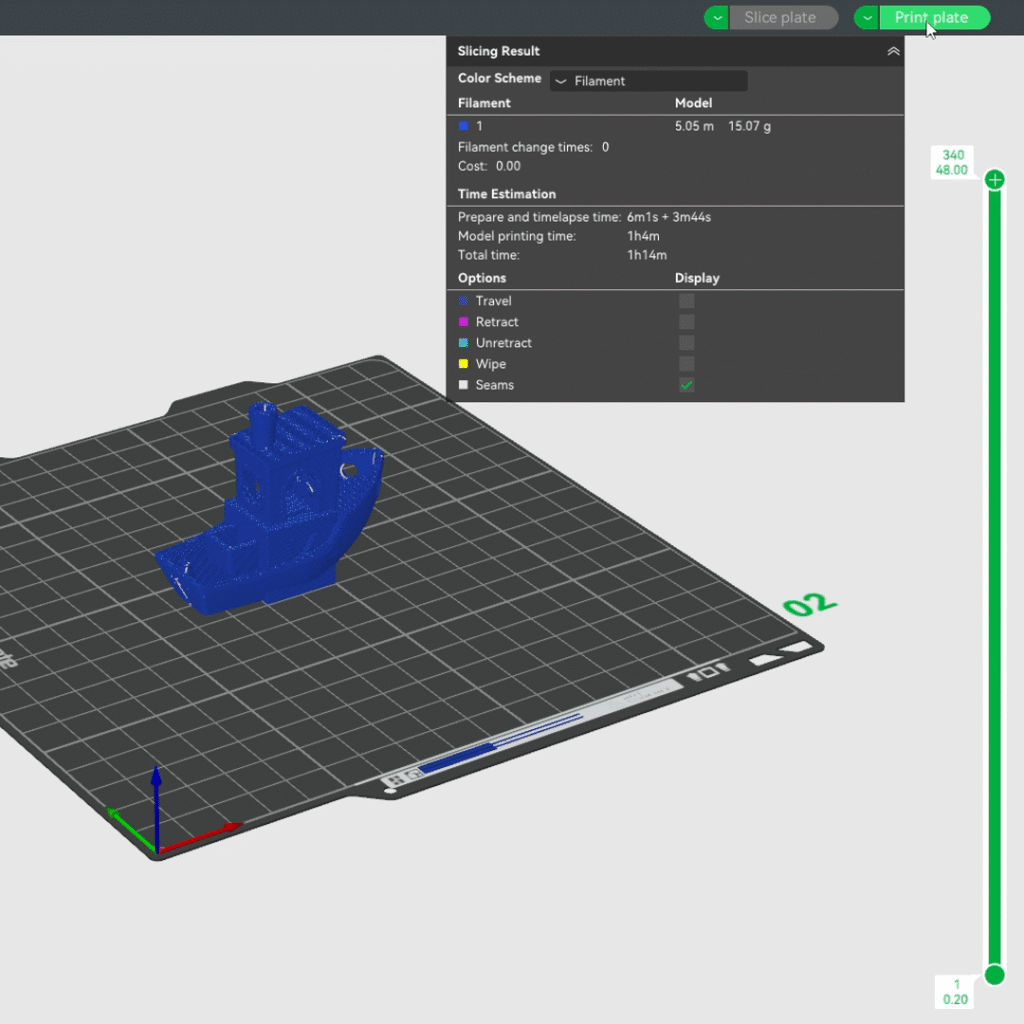
4. Inspect the file as it opens. It will inherently look strange – because Bambu Studio is attempting to interpret this queue as a single file on a preview plate, all file data will be meshed into a single preview. You can ensure that the queue has been compile correctly by scrolling downward through the layer viewer on the rightmost side of the Bambu Studio preview window – each printed file should occupy ranges of layers throughout the preview and should not truly be overlapping.
5. When ready to print, select “Print plate” (or, if still defaulted to “Export plate sliced file” from the previous export, select the arrow to the left of it to access the dropdown menu and select “Print plate”), and send it to your A1 Mini as you normally would for any other print file.
Enjoy the AutuQueue!